Showing posts with label Knowledge. Show all posts

Monday, October 28, 2013

How To Fix Citrix (Allow Hotkey) Error

Catagory: Windows
Platform: Citrix
Error     : Citrix online Plug-in configuration manager: no value could be found for (allowhotkey) that satisfies all lockdown requirements. The lockdown requirements in force may be conflicting.


This is a rare conflict happens for various reason. Below is the correct fix to rectify it


1. Open admin Command Prompt a.k.a CMD.
(Click How to open Admin CMD for a quick guide.)

2. Navigate to
i )HKEY_LOCAL_MACHINE\SOFTWARE\ICA Client\Engine\Lockdown Profiles\All Regions
ii)HKEY_USER\USER_SID\SOFTWARE\ICA Client\Engine\Lockdown Profile\All Regions


3. In the right pane double click on EnableLockdown


and modify the value from 1 to 0 on both path i and ii.


4. Save Regedit by pressing F5 key. Close Regedit and try to start published application on Citrix again. The application should be working now.


                                                       !!cheers!!


Monday, October 17, 2011

How to Fix Outlook prompting error "The command is not available" when launching Out Of Office Tool

Category              : Outlook 2007
Operating System: Vista & Win7

This problem can be easily fixed by renaming a key in the registry. But the question is which key..hahax!

Just follow the steps below

FIX


1. Quit Outlook completely
      -Right-click on Taskbar and then click Task Manager.
      -Click the Processes tab, and then verify that Outlook.exe does not appear in the
        list of processes.

2. Open Admin Command Prompt a.k.a CMD
      (this has been covered in my previous post click here to view the post)

3. Type Regedit in Command Prompt and hit Enter

4. Go to HKEY_CURRENT_USER\Software\Microsoft\Office\10.0\Outlook\Resiliency 


5. Rename Resiliency to Resiliency. old and press F5 to save.

6. Quit Regedit and relaunch outlook. The error is fixed now!


                                                          !!Cheers!!


Thursday, May 26, 2011

How to Fix Outlook 2007 index Search in Vista

Category              : Outlook 2007
Operating System  : Vista


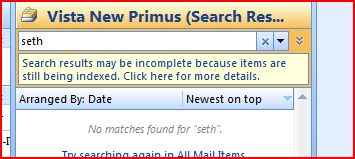
Are you facing difficulties to search or partially search in your outlook, which gives you result no matches found. Perhaps you might notice a yellow message underneath the search bar like this!


And when you click on the yellow message, you will be prompted something like 
this!


Well this is because the Indexing file on your machine/computer for outlook is corrupted. And the best way to resolve this issue is by just rebuilt the outlook indexing.


How to rebuilt Outlook indexing on Vista 


1) Click Start > Control panel > Indexing Option  (or you can just type indexing in start search and press enter)


2) Click MS office outlook and click on Modify tab at the bottom.


3) Make sure MS Office Outlook is checked in  change selection location.


4) Click OK, go to previous menu and click on Advance tab > Rebuilt  


If you go back to Indexing Option dialog box now, at the top you will see the indication of the indexing process.


Normally it would take a decent time to complete the process (depends on how big is your outlook data). Well, once its finish, just launch your outlook and the search will work now!


                                                            !!cheers!!


Tuesday, May 17, 2011

Clipboard Hacking Problem via "CTRL+C" function in Internet Explorer


Category              : Windows
Operating System : Vista, Win7, XP and etc

Internet Browser  : MS Internet Explorer


I believe all of us are familiar with Ctrl+C functions in Windows platform. But recently found that the function is unwise to be used while online especially surfing via MS Internet Explorer.


Whats happened at the background is that, the date that you "CTRL+C" (it could be your banking password or Credit Card pin or online web password)  will be  stored in clipboard and it is accessible from the net by a combination of java-script and ASP. This is called Clipboard Hacking.


Just try this:
1. Copy any text by Ctrl + C
2. Click this Link: http://www.sourcecodesworld.com/special/clipboard.asp via MS Internet Explorer.
3. You will see the text you copied was accessed by this web page. 


It is true, text you last copied for pasting (copy & paste) can be stolen
when you visit web sites using a combination of java-script and ASP (or PHP,
or CGI) to write your possible sensitive data to a database on another
server.


How Clipboard Hack is done?  (for information purpose only)
The Clipboard hack is done by the following Source Code:


<script language="java-script">
var content = clipboardData.getData("Text");
alert(content);
</script>


How to safeguard yourself from Clipboard Hack Problem?
To avoid clipboard hack problem, do the following:
1. Go to internet options->security.
2. Press custom level.
3. In the security settings, select disable under Allow paste operations
via script. (Scripting sub heading)


I found it very funny whereby this hacking method does not work on Mozilla Firefox Browser and Google Chrome.


Morale of the story:
1. Do not keep sensitive data (like passwords, credit card numbers, PIN etc.) in the
      clipboard while surfing the web.
2. Never use CTRL+C to paste your security credential while online
3. Start using Google Chrome and Mozilla Firefox Browser J


                                                        !!!Cheers!!!!


Tuesday, February 15, 2011

Fix - Icons missing from system tray (Taskbar)

Category              : Windows
Operating System  : Vista


1. Start a admin cmd (command prompt) window
2. Type regedit in the admin cmd window to launch Registry Editor
3. Go to HKEY_USER\User SID\Software\Classes\Local Settings \Software\ Microsoft \ Windows\CurrentVersion \TrayNotify

4. Delete keys IconStreams and PastIconsStream
5. Press F5, and close the regedit.
6. Start Task Manager, go to processes and kill explorer.exe
7. Go to applications in the Task Manager, hit new task and type explorer.exe and click OK
8. Explorer will now reboot your icons should return to normal now.


                                              !!Cheers!!

Monday, January 31, 2011

How to open Admin command prompt in VISTA

Category              : Outlook 2007
Operating System : Vista & Win7


Click Start ,  type cmd on start search


Right click on the cmd.exe icon which shows under programs and Click on Run As Administrator. 

-shortcut : type cmd on start search and press & hold Ctrl+Shift and Enter

User Account Control (UAC) interface will be prompt. Insert the admin username and password.
      

As for some computers (e.g. office computer) will requires Domain name. This domain name will be automatically detected by system and the name of the domain will be displayed as a note below password input bar. For any sort of reason (basically OU issues) , to change the domain just type the username in the format of Domain\Username


Well If you have used admin/full access account to login, UAC will just prompt as indication bar and you will only need to click OK (username and password entry not required)


Check the title bar to confirm  whether its an admin command prompt or not. If its not admin bar or UAC prompt to enter username and password again, it means your account / access does not have admin privillage. You need to check with your Access Management. Well if its a home PC and you are a teenager, ..talk to your dad!! 

                                                  !!cheers!!

Sunday, January 30, 2011

Outlook Cached Exchange Mode is grayed out


Category              : Outlook 2007
Operating System : Vista
Symptoms            : Outlook status showing Online with Microsoft Exchange
Error Message      :  nil

(for advance users who are searching fix for Outlook Cached Exchange Mode grayed out issue, please scroll/skip down  to FIX - Outlook Cached Exchange Mode is grayed out)

Well some of you guys might have encountered this issue, whereby when you are connected to office network, your outlook works find, but when you open outlook at home, outlook gives variable error messages and inbox become empty.

It happens because (on layman words) : the outlook have failed to find/create OST file , OST file is a copy of all the messages (inbox) into you hardisk, as for the fact the outlook inbox is directly connected to the exchange server and not located in local machine.

Therefore, your outlook (inbox) is directly connected to exchange server without any copy in hardisk, this is why outlook will only work at office network (direct exchange connection) and not at your home (offline).

So how to check? outlook status will be indicated as "Online with Microsoft Exchange"


FIX

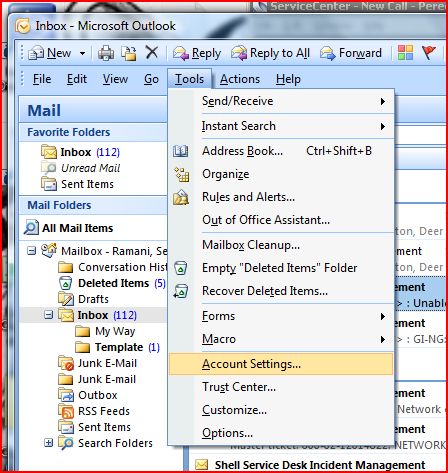
To fix this problem, click on Tools > Account Settings..


Double-Click on your email address


Tick on Use Cached Exchange Mode check box


Click Next > Finish. Relaunch outlook and outlook will start updating / creating ost file. The outlook status now will become Connected to Microsoft Exchange.


Well sometimes the Use Cached Exchange Mode check box will be grayed-out. This might cause by several factors like group policy. Below will be the registry key which need be modified to enable the option.

FIX - Outlook Cached Exchange Mode is grayed out

1. Start a admin cmd (command prompt) window
2. Type regedit in the admin cmd window to launch Registry Editor
3. Go to HKEY_USER\User SID\Software\Microsoft\Office\12.0\Outlook\OST
4. Right click on the NoOST entry on the right and click Modify
5. Give it a value of 0
6. Restart Outlook 2007 and the Use Cached Exchange Mode option should no longer be grayed out anymore.

                                                           !!cheers!!


Monday, January 03, 2011

Battery Health Check For HP Laptop

Category              : Laptop (HP)
Operating System : w2k or Vista


For Laptop models running on Windows 2000

1. Download the softpaq sp32299.exe from HP Battery Check
2. Install softpaq(sp32299). It takes about 5 -10 minutes to install.
3. Go to Start> Program> Hewlett-Packard > HP Battery Check


For Laptop models running on Vista 

1. Download the softpaq sp37021.exe from HP Battery Check (Vista) 
2. Install the softpaq (sp37021.exe).  It takes about 5 -10 minutes to install.
3. Open a normal user command prompt, go to C:\Program Files\Hewlett-Packard\HP Battery Check  (My Computer > Program Files > Hewlett-Packard > HP Battery Check) and run HPBC.exe 


Please check whether the battery is slotted properly. The machine should be on AC power (power ad) while running the application.  Cheers!!


Friday, December 31, 2010

Command Prompt a.k.a CMD command list

Category              : Desktop
Operating System : Vista

Control Panel

  • CONTROL: opens the control panel window
  • CONTROL ADMINTOOLS: opens the administrative tools
  • CONTROL KEYBOARD: opens keyboard properties
  • CONTROL COLOUR: opens display properties.Appearance tab
  • CONTROL FOLDERS: opens folder options
  • CONTROL FONTS: opens font policy management
  • CONTROL INTERNATIONAL or INTL.CPL: opens Regional and Language option
  • CONTROL MOUSE or MAIN.CPL: opens mouse properties
  • CONTROL USERPASSWORDS: opens User Accounts editor
  • CONTROL USERPASSWORDS2 or NETPLWIZ: User account access restrictions
  • CONTROL PRINTERS: opens faxes and printers available
  • APPWIZ.CPL: opens Add or Remove programs utility tool
  • OPTIONALFEATURES: opens Add or Remove Windows component utility
  • DESK.CPL: opens display properties. Themes tab
  • HDWWIZ.CPL: opens add hardware wizard
  • IRPROPS.CPL: infrared utility tool
  • JOY.CP: opens game controllers settings
  • MMSYS.CPL: opens Sound and Audio device Properties. Volume tab
  • SYSDM.CPL: opens System properties
  • TELEPHON.CPL: Opens phone and Modem options
  • TIMEDATE.CPL: Date and Time properties
  • WSCUI.CPL: opens Windows Security Center
  • ACCESS.CPL: opens Accessibility Options
  • WUAUCPL.CPL: opens Automatic Updates
  • POWERCFG.CPL: opens Power Options Properties
  • AZMAN.MSC: opens authorisation management utility tool
  • CERTMGR.MSC: opens certificate management tool
  • COMPMGMT.MSC: opens the Computer management tool
  • COMEXP.MSC or DCOMCNFG: opens the Computer Services management tool
  • DEVMGMT.MSC: opens Device Manager
  • EVENTVWR or EVENTVWR.MSC: opens Event Viewer
  • FSMGMT.MSC: opens Shared Folders
  • NAPCLCFG.MSC: NAP Client configuration utility tool
  • SERVICES.MSC: opens Service manager
  • TASKSCHD.MSC or CONTROL SCHEDTASKS: opens Schedule Tasks manager
  • GPEDIT.MSC: opens Group Policy utility tool
  • LUSRMGR.MSC: opens Local Users and Groups
  • SECPOL.MSC: opens local security settings
  • CIADV.MSC: opens indexing service
  • NTMSMGR.MSC: removable storage manager
  • NTMSOPRQ.MSC: removable storage operator requests
  • WMIMGMT.MSC: opens (WMI) Window Management Instrumentation
  • PERFMON or PERFMON.MSC: opens the Performance monitor
  • MMC: opens empty Console
  • MDSCHED: opens memory diagnostics tools
  • DXDIAG: opens DirectX diagnostics tools
  • ODBCAD32: opens ODBC Data source Administrator
  • REGEDIT or REGEDT32: opens Registry Editor
  • DRWTSN32: opens Dr. Watson
  • VERIFIER: opens Driver Verifier Manager
  • CLICONFG: opens SQL Server Client Network Utility
  • UTILMAN: opens Utility Manager
  • COLORCPL: opens color management
  • CREDWIZ: back up and recovery tool for user passwords
  • MOBSYNC: opens Synchronization center
  • MSCONFIG: opens System Configuration Utility
  • SYSEDIT: opens System Configuration Editor (careful while using this command)
  • SYSKEY: Windows Account Database Security management (careful while using this command)


Windows utility and applications

  • EXPLORER: Opens windows Explorer
  • IEXPLORER: Opens Internet explorer
  • WAB: opens Contacts
  • CHARMAP: opens Character Map
  • WRITE: opens WordPad
  • NOTEPAD: opens Notepad
  • CALC: opens Calculator
  • CLIPBRD: opens Clipbook Viewer
  • WINCHAT: opens Microsoft Chat Interface
  • SOUNDRECORDER: opens sound recording tool
  • DVDPLAY: run CD or DVD
  • WMPLAYER: opens Windows Media Player
  • MOVIEMK: Opens untitled Windows Movie Maker
  • OSK: opens on-screen Keyboard
  • MAGNIFY: opens Magnifier
  • WINCAL: opens Calendar
  • DIALER: opens phone Dialer
  • EUDCEDIT: opens Private Character Editor
  • NDVOL: opens the mixer volume
  • RSTRUI : opens Tool System Restore (For Vista only)
  • %WINDIR%\SYSTEM32\RESTORE\rstrui.exe: opens Tool System Restore (for XP only).
  • MSINFO32: Opens the System Information
  • MRT : launches the utility removal of malware.
  • Taskmgr : Opens the Windows Task Manager
  • CMD: opens a command prompt
  • MIGWIZ: Opens the tool for transferring files and settings from Windows (Vista only)
  • Migwiz.exe: Opens the tool for transferring files and settings from Windows (for XP only)
  • SIDEBAR: Open the Windows (Vista only)
  • Sigverif : Opens the tool for verification of signatures of files
  • Winver : Opens the window for your Windows version
  • FSQUIRT: Bluetooth Transfer Wizard
  • IExpress opens the wizard for creating self-extracting archives.
  • MBLCTR: opens the mobility center (Windows Vista only)
  • MSRA : Opens the Windows Remote Assistance
  • Mstsc : opens the tool connection Remote Desktop
  • MSDT: opens the diagnostic tools and support Microsoft
  • WERCON: opens the reporting tool and solutions to problems (for Vista only)
  • WINDOWSANYTIMEUPGRADE: Enables the upgrade of Windows Vista
  • WINWORD : opens Word (if installed)
  • PRINTBRMUI : Opens migration wizard printer (Vista only)


Disk management

  • DISKMGMT.MSC: opens disk management utility
  • CLEANMGR: opens disk drive clean up utility
  • DFRG.MSC: opens disk defragmenter
  • CHKDSK: complete analysis of disk partition
  • DISKPART: disk partitioning tool


Connection management

  • IPCONFIG: list the configuration of IP addresses on your PC (for more information type IPCONFIG/? in the CMD menu)
  • INETCPL.CPL: opens internet properties
  • FIREWALL.CPL: opens windows firewall
  • NETSETUP.CPL: opens network setup wizard


Miscellaneous commands

  • JAVAWS: View the cover of JAVA software (if installed)
  • AC3FILTER.CPL: Opens the properties AC3 Filter (if installed)
  • FIREFOX: Mozilla launches Firefox (if installed)
  • NETPROJ: allow or not connecting to a network projector (For Vista only)
  • LOGOFF: closes the current session
  • SHUTDOWN: shut down Windows
  • SHUTDOWN-A: to interrupt Windows shutdown
  • %WINDIR% or %SYSTEMROOT%: opens the Windows installation
  • %PROGRAMFILES%: Opens the folder where you installed other programs (Program Files)
  • %USERPROFILE%: opens the profile of the user currently logged
  • %HOMEDRIVE%: opens the browser on the partition or the operating system is installed
  • %HOMEPATH%: opens the currently logged user C: \ Documents and Settings \ [username]
  • %TEMP%: opens the temporary folder
  • VSP1CLN: deletes the cache for installation of the service pack 1 for Vista

  • System File Checker (Requires Windows CD if the cache is not available):
  • SFC / scannow: immediately scans all system files and repairs damaged files
  • SFC / VERIFYONLY: scans only those files system
  • SFC / Scanfil = "name and file path": scans the specified file, and repaired if damaged
  • SFC / VERIFYFILE = "name and file path": Scans only the file specified
  • SFC / scanonce: scans the system files on the next restart
  • SFC / REVERT: return the initial configuration (For more information, type SFC /? In the command prompt CMD.